

This article aims to be a comprehensive guide on how you can run MAC OS X on your System. In this article, I will show you a simple method to install MAC OS X on VMware Workstation. So let's get started.
Introduction
In this article, we will see how we can Install, Configure and run MAC OS X 10.11 El Captain, Yosemite 10.10, and Maverick 10.9 on VMware Workstation 12 inside Windows PC. This is a Simple Guide on How to Install MAC OS X on VMWare Workstation running on a Windows host machine. VMware is useful for Installing Many Operating Systems, You can Install Windows, Linux, and Mac Operating Systems on a Single Host Machine. Here I am testing on MAC OX X 10.11.
Hardware Requirements
- Intel Core i3,i5, or i7 running Windows 7 X64 or Higher
- At least 4 GB of RAM. 8 GB is recommended.
- Hard Disk with at least 40 GB free for Virtual Machine (SSD is Perfect )
Software or Tools Required
- VMware Workstation 12 (I am Testing on VMWare Pro)
- VMware Unlocker 2.8
- Download the ISO File of EI Capitan 10.11 from the Link Below
Steps to Install MAC OS X on VMware Workstation
Patch VMware for Running MAC OS
Here I'm using VMware Workstation 12 Pro and it also has VMware Player. Installation and Patch will be the same.
Step 1. Install Vmware Workstation /Player.
Step 2. Extract VMware Unlocker.
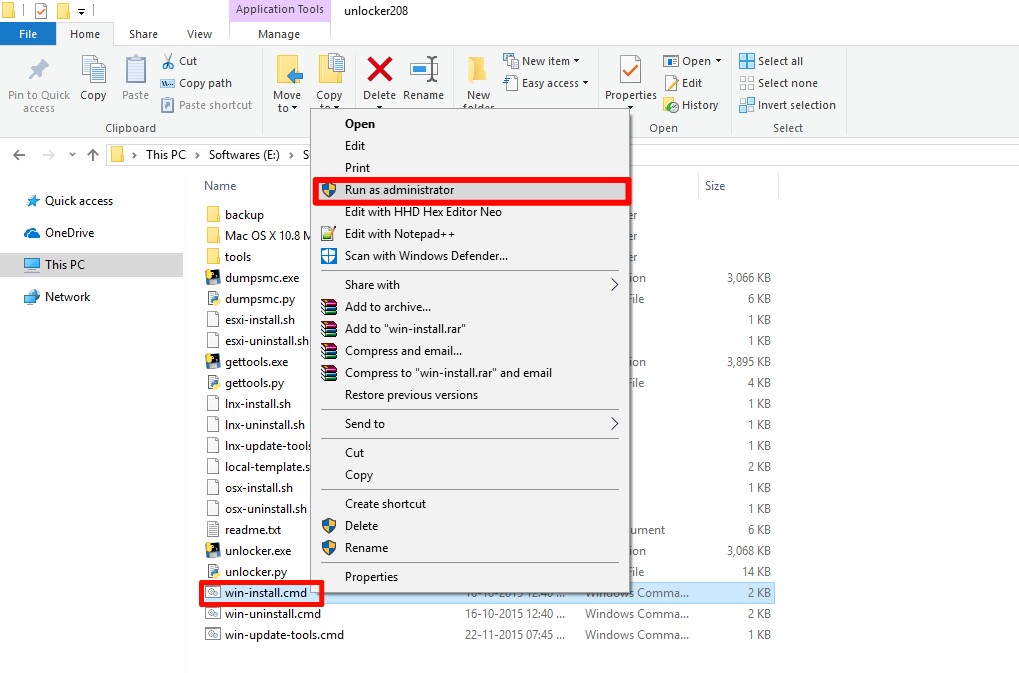
Step 3. Go to VMware unlocker Folder and Right Click on 'win-install.cmd' and Select 'Run as Administrator'.
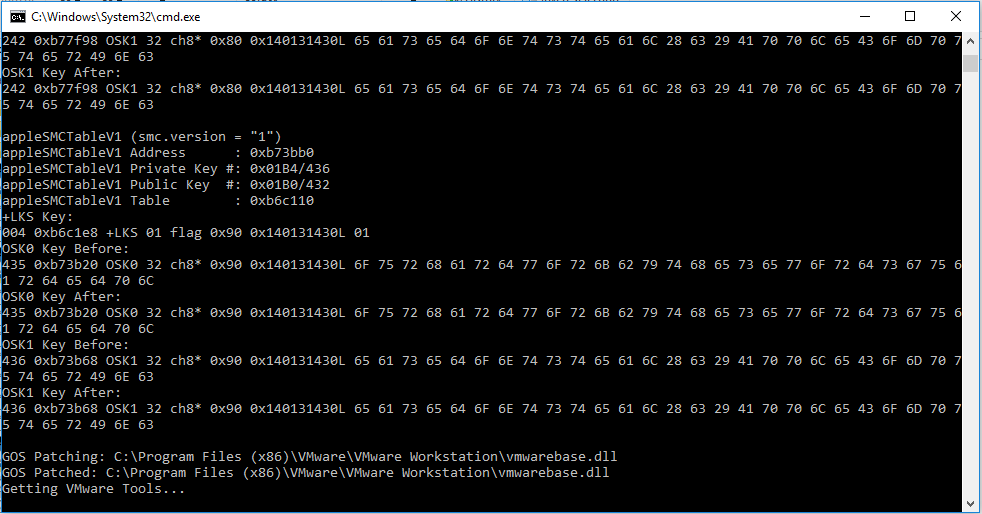
Wait until windows cmd finishes and closed itself.
Create New Virtual Machine
Step 1. Open VMware Workstation /Player and Click 'Create a New Virtual Machine'.

Step 2. Choose 'Typical'.

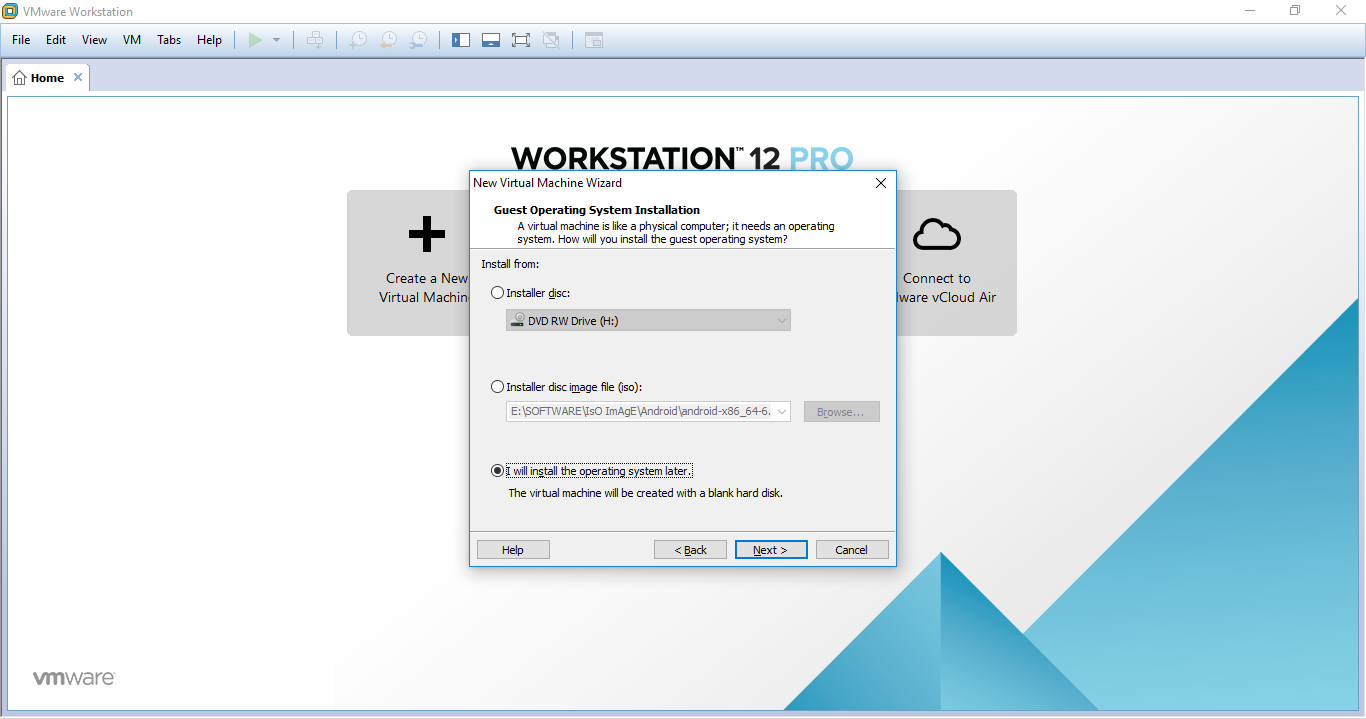
Step 3. Choose 'I will install the Operating System Later'.
Step 4. Select 'Apple MAC OS X' as the Guest Operating System and the version you want to install and press Next.

Step 5. Give the 'Virtual Machine Name' and the Location Folder where it saves OS X Files . (Leave it Default) and Click Next.

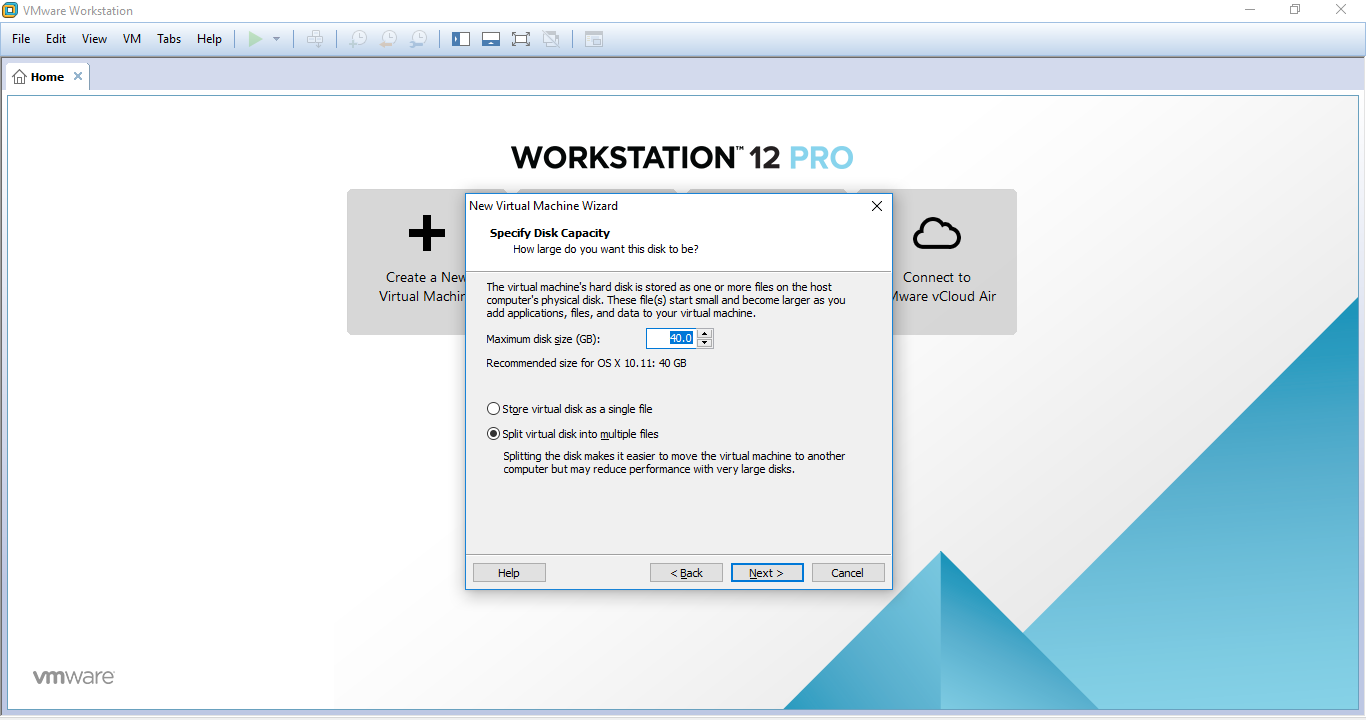
Step 6. Give VM Disk Size to 40 GB and Select 'Store Virtual disk as a Single file' , Then Next.
Step 7. Now Choose 'Customize hardware' and Click New CD/DVD , and Select 'Use ISO Image file' and locate your ISO Image File.

Step 8. Now Go to VM Configuration Folder. If it is Default then it will be in Documents/Virtual Machine Folder /OS X Version Name. Open 'OSX 10.11.vmx' file in Notepad.
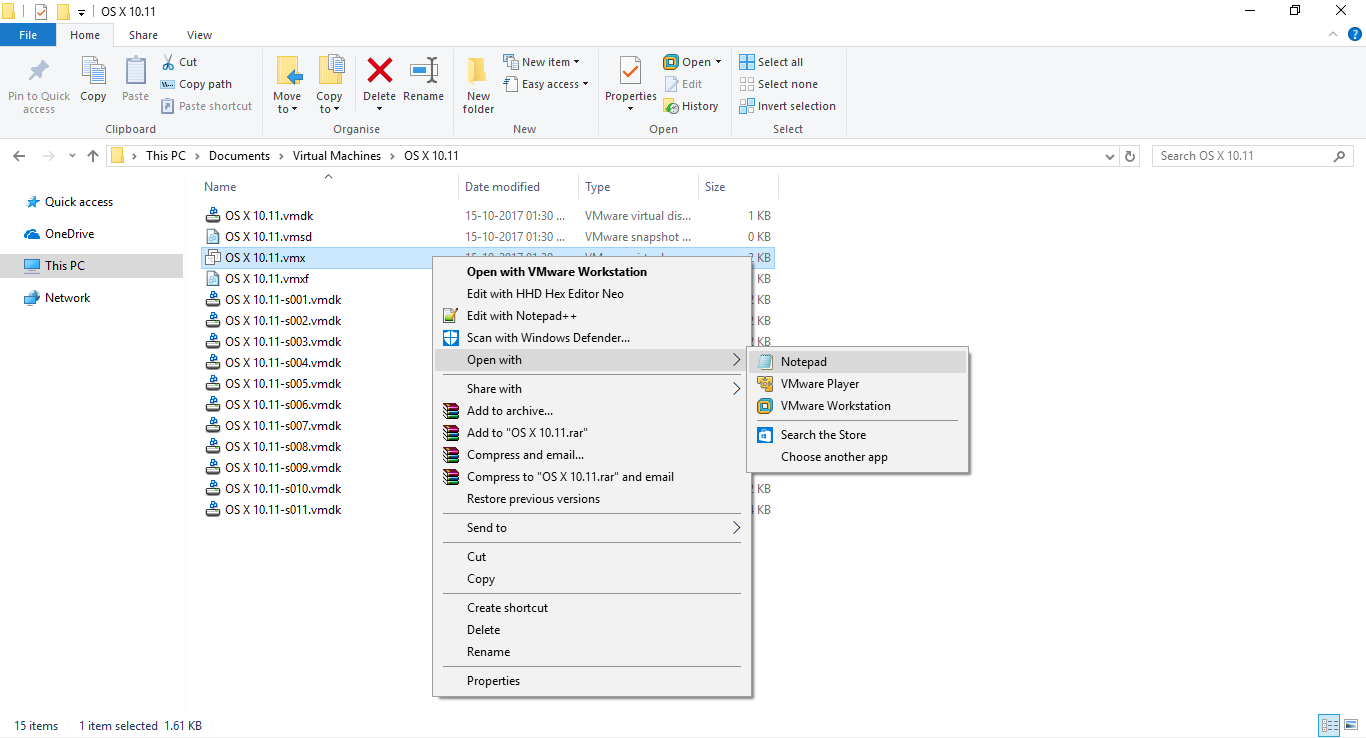
Step 9. Add this line smc.version = "0" below virtualHW.version="12″ and Save Changes.

Step 10. Now Power on Virtual Machine, If you see Apple Logo then you have done the right configuration.

Installation of MAC OS X
Step 1. Select Language and agree on terms.

Step 2. Open Disk Utility. from Utilities > Disk Utilities
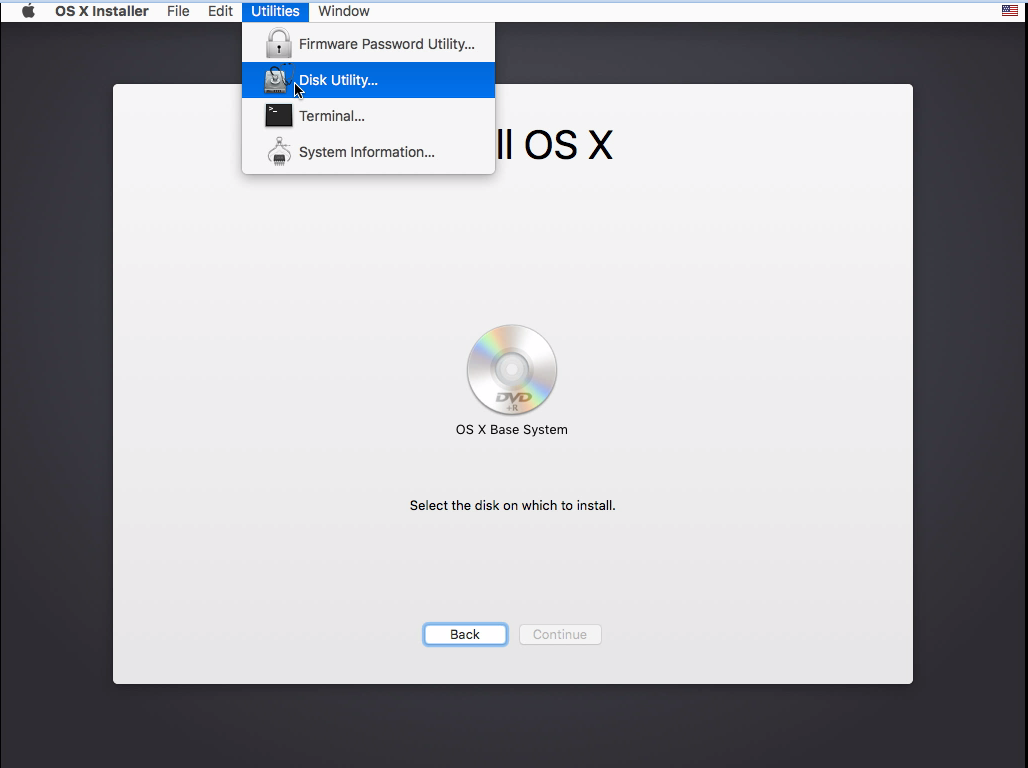
Step 3. Choose VM Disk and Format the partition as below.

Step 4. Quit Disk Utility and Choose Installation Partition (e.g. tester) and Continue.

Step 5. The installation will take about 20-14 minimum depending on the Hardware Configuration. After Finish VM will reboot automatically.

Step 6. Configure your newly Installed OS X (e.g. Time zone, user account,iCloud login, etc.)

Step 7. At Last, you will be on the OS X Desktop. Now eject the CD driver and Install VMware tools software, To do so go to VM > Install VMware Tools.

Step 8. Select Install VMware Tools, and wait for it to finish.

Step 9. After Installation Finish reboot the Machine

Done! Now play Mac OS X on VMware on Windows.
Conclusion
So, this guide is about how you can simply use MAC OS X on Windows operating system using a VMware workstation. With the above guide, you will be able to Run MAC OS X without any issues. Hope you like this cool trick, do share this trick with others too. Leave a comment below if you have any related queries about this.